You can add multiple staff members to an event and use person functions to control whether or not a staff member can mark the register in Ontrack Staff Hub.
To add staff to an event:
-
Open the required event. See Open an Existing Event for further information.
-
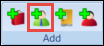
Select the Add Staff button in the Add section of the Timetable ribbon.
 Important.You can also select and hold (or right-click) on the Staff tab and select Add to add a staff member to an event.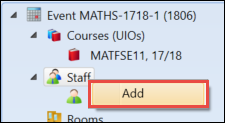
The Staff Search window is displayed.
-
Use the Staff Search window to search for the required staff member.
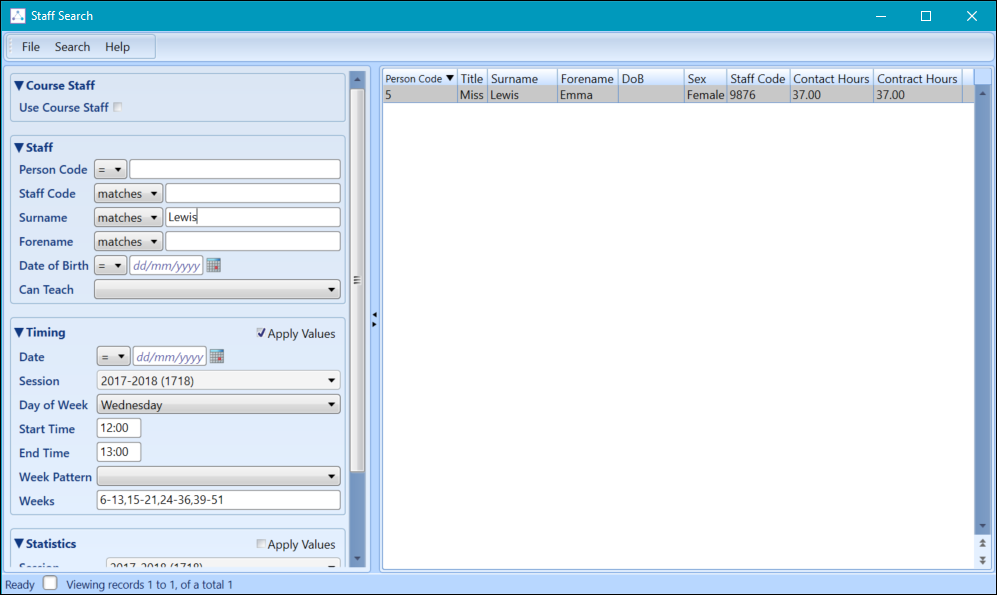 Important.The Apply Values check box will be selected by default; this ensures that the search results only displays available staff members. Deselect this to view all staff members.
 -
Select the required staff member to add to the event.
 Important.You can add multiple staff members to one event by repeating steps 1-3.
See Using the Event Tabs for further information on using the Staff tabs.